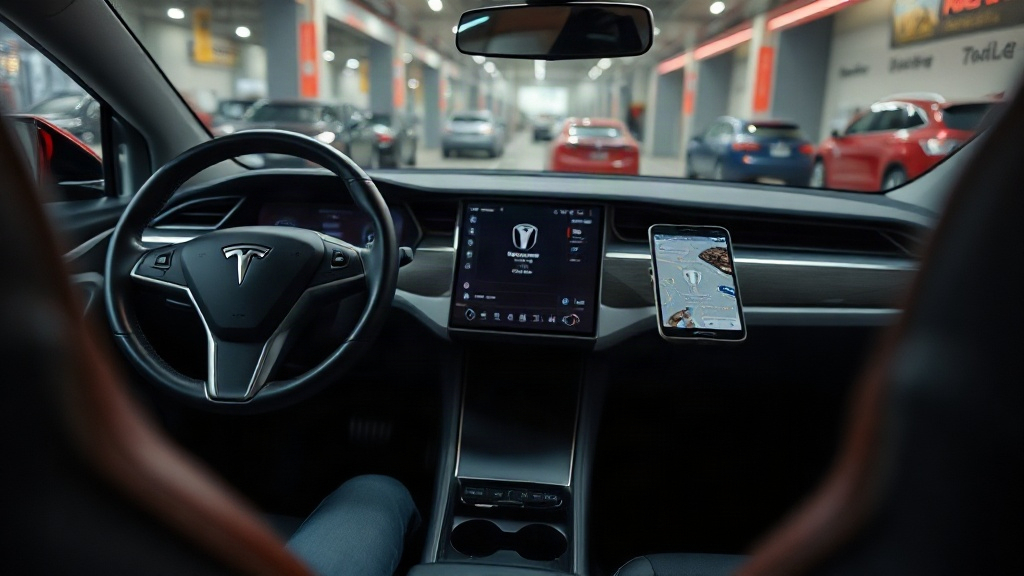
You tap the Tesla app to warm up the cabin, and the screen just spins. If you are searching for “Tesla App Not Connecting to Your Car? Common Causes and Fixes,” you are in good company — this is one of the most common owner complaints, and it rarely means something expensive broke.
Quick answer: Most connection failures trace back to three things: a weak cellular or Wi-Fi signal, a car that has gone into deep sleep, or an outdated app paired with an old software version. Force-close the app, toggle Bluetooth and airplane mode, and make sure both the car and phone have current software. If that fails, a two-finger screen reboot on the car clears most remaining cases.
This guide walks through the real causes in plain language, from account mix-ups to weak signals, and gives you an ordered set of fixes. By the end, you will know which steps to try first and when to contact Tesla support instead of troubleshooting alone.
What is Tesla App Not Connecting to Your Car? Common Causes and Fixes?
The Tesla app talks to your car over the internet, not through a direct radio link. Your phone sends a command to Tesla’s servers, and the servers relay it to the vehicle through its built-in cellular modem or a nearby Wi-Fi network. Every step in that chain can fail, which is why the same app works at noon and stalls in a parking garage.
Here are the usual culprits, roughly in order of how often they appear:
- The car is asleep. Teslas enter a low-power sleep state to protect the battery. Waking takes a few seconds, and the app sometimes times out first.
- Poor signal on either end. A weak cell connection at the car, or a phone clinging to a dead Wi-Fi hotspot, breaks the handshake.
- The app or firmware is stale. Commands and authentication methods change over time. An old app version may fail against newer vehicle software.
- Bluetooth problems for phone key. Locking, unlocking, and keyless start rely on Bluetooth, which is separate from the internet path.
- Account and pairing issues. A second driver profile, a password change, or a reinstall can break the token that links phone to car.
- Server outages. Occasionally the problem sits with Tesla’s servers rather than your hardware.
The symptoms shift depending on the cause. A spinner that never resolves usually points to a network or server issue. “Phone key disconnected” messages come from Bluetooth. A car that shows as offline in the app often just needs to be woken.
Internet wake-ups versus Bluetooth commands
It helps to separate the two channels. Remote commands — climate, charging, honking, checking location — need the internet path. Walking up and driving away depends on Bluetooth. If your phone key fails but the app still shows battery level, you are dealing with a Bluetooth fault, not a network one.
Before you dig in, decide which channel is broken. Remote commands failing points to network, app, or server problems. Phone key failing points to Bluetooth, permissions, or pairing.
Sort out which channel is misbehaving and you cut the troubleshooting list roughly in half. That single check saves the most time.
Why Tesla App Not Connecting to Your Car? Common Causes and Fixes matters
A dropped connection is not just an annoyance. The app is how many owners schedule charging at off-peak rates, precondition the cabin on a cold morning, and confirm the car actually locked. When it fails, you lose control over functions you now depend on.
The stakes get higher in specific moments. Imagine leaving work and finding the phone key will not unlock the door, with no key fob in your pocket. Or setting a charge timer overnight and discovering in the morning that the command never reached the car, leaving you short on range for a long drive.
What a failed connection can cost you
- Charge planning. Missed scheduled charging means paying peak electricity prices or starting a trip undercharged.
- Comfort and safety. Preconditioning matters in extreme heat or cold, both for comfort and for battery behavior.
- Access. Phone key failures can lock you out during an app outage, especially if you skip the backup card.
- Diagnostics. You cannot read alerts or service messages when the app shows the car as offline.
Reliability also varies by condition, which makes the problem feel random. Owners in areas with weak cellular coverage see more failures than those parked near strong Wi-Fi. Underground garages and rural lots are common trouble spots.
A quick comparison of connection paths
Comparison: internet commands vs. Bluetooth phone key
| Factor | Internet commands | Bluetooth phone key |
|---|---|---|
| Needs cellular or Wi-Fi | Yes | No |
| Typical failure | Car asleep, weak signal | Permissions, pairing |
| Affected by server outages | Yes | No |
| Works in underground garages | Rarely | Usually |
Notice the pattern: the two paths fail in different places. That is why testing one tells you so little about the other, and why a full fix starts with checking both.
Best practices
Reliable connections come from small habits, not one magic setting. Start with the sequence most owners find effective when something breaks, then adopt routines that prevent repeat failures.
Step-by-step troubleshooting order
- Force-close and reopen the app. This clears stuck sessions and reconnects cleanly.
- Toggle airplane mode for ten seconds. It refreshes your phone’s network registration.
- Check both software versions. Update the app from your store, and check the car’s software screen for pending updates.
- Wake the car. Opening a door or tapping the app’s wake button rouses it from sleep.
- Reboot the car’s screen. Hold both steering-wheel scroll buttons until the display goes black, then release.
- Reinstall the app. This rebuilds the connection token and clears corrupted local data.
Work through these in order and stop when the connection returns. Most failures resolve by step three. If nothing works after a reinstall, contact Tesla support and describe which steps you tried so they skip the basics.
Routines that keep the connection steady
- Keep the app updated. Set your phone to update apps automatically.
- Install car updates promptly. Newer firmware often includes connectivity fixes.
- Use strong, known Wi-Fi at home. Park within range of a reliable network when possible.
- Leave Bluetooth on. Turning it off to save battery breaks the phone key.
- Allow background refresh. Both iOS and Android throttle apps that are denied background access.
- Carry the key card. Treat it as your backup, not an optional extra.
Major phone updates can quietly reset location and Bluetooth permissions. Open settings and confirm the Tesla app still has them.
A few minutes of setup prevents most of these headaches.
Common mistakes to avoid
Some well-meaning fixes make things worse. These errors show up again and again in owner forums, and each one has a simple alternative.
Deleting and reinstalling the app as a first step. Reinstalling is a valid fix, but it wipes settings and forces re-authentication. Try the lighter steps first, then reinstall only if they fail.
Ignoring the car’s side of the connection. Owners often focus on the phone and never check the vehicle. Open the car’s software menu, confirm it has signal, and look for a pending update. Half of all “app broken” reports trace back to a car that simply needed a reboot.
Forgetting that sleep is normal. A Tesla that has been parked for hours goes into deep sleep, and it will appear offline. That is expected behavior, not a fault. The app’s wake attempt usually succeeds within a minute; repeated failures suggest a real issue.
Turning off Bluetooth to save battery. This breaks the phone key and any Bluetooth-based features. If battery drain is your concern, limit background refresh instead of killing the radio outright.
Blaming the app during a server outage. When Tesla’s servers struggle, every owner sees failures at once. Check community forums before you spend an hour troubleshooting a problem that fixes itself.
Skipping the key card. Owners who rely solely on the phone can be stranded by a dead battery or a failed pairing. Keep the card in your wallet or bag.
Running old firmware for months. Delaying updates might feel safe, but connectivity fixes ship inside them. Review release notes and install when convenient.
Avoid these traps and future failures get easier to diagnose. A little patience at step one — and a backup key card — covers most scenarios.
FAQ
How much does it cost to fix a Tesla app connection problem?
Usually nothing. Most fixes — rebooting, updating, reinstalling, re-pairing — are free and take under ten minutes. Paid repairs only come into play if the car’s connectivity hardware has failed, which a service center can diagnose.
How long should I wait before assuming the connection is truly broken?
Give it about two minutes of troubleshooting. If force-closing, toggling airplane mode, and waking the car do not restore the link, treat it as a real fault and move to a screen reboot or reinstall.
Can a weak cell signal alone cause the app to fail?
Yes. The car relies on its own cellular modem when no Wi-Fi is available. Parking in a basement or remote area can drop that link even when your phone has full bars, so the two signals are not the same.
Is it safe to delete and reinstall the Tesla app?
It is safe, but you will need to sign in again and may need to re-enable phone key permissions. Reinstalling does not delete your vehicle data or service history, so your account stays intact.
Why does the app work sometimes and fail other times?
Intermittent failures usually trace to the car sleeping, fluctuating signal, or brief server hiccups. Track when failures happen — parked location and time of day often reveal the pattern.
Should I contact Tesla support or keep troubleshooting?
Try the full sequence once, including a reinstall. If the app still cannot reach the car while the car shows a working connection, contact support with your steps and timestamps so they can check the vehicle remotely.
Conclusion
Tesla App Not Connecting to Your Car? Common Causes and Fixes usually comes down to a short list: a sleeping car, weak signal, stale software, or a broken Bluetooth pairing. Start with the free, quick steps — close the app, toggle airplane mode, update both sides, then reboot the car’s screen. Keep the key card with you and let updates install, and most failures will stay rare and brief.
Your next move: run the troubleshooting sequence in order this evening, so you know it works before you need it in a hurry.